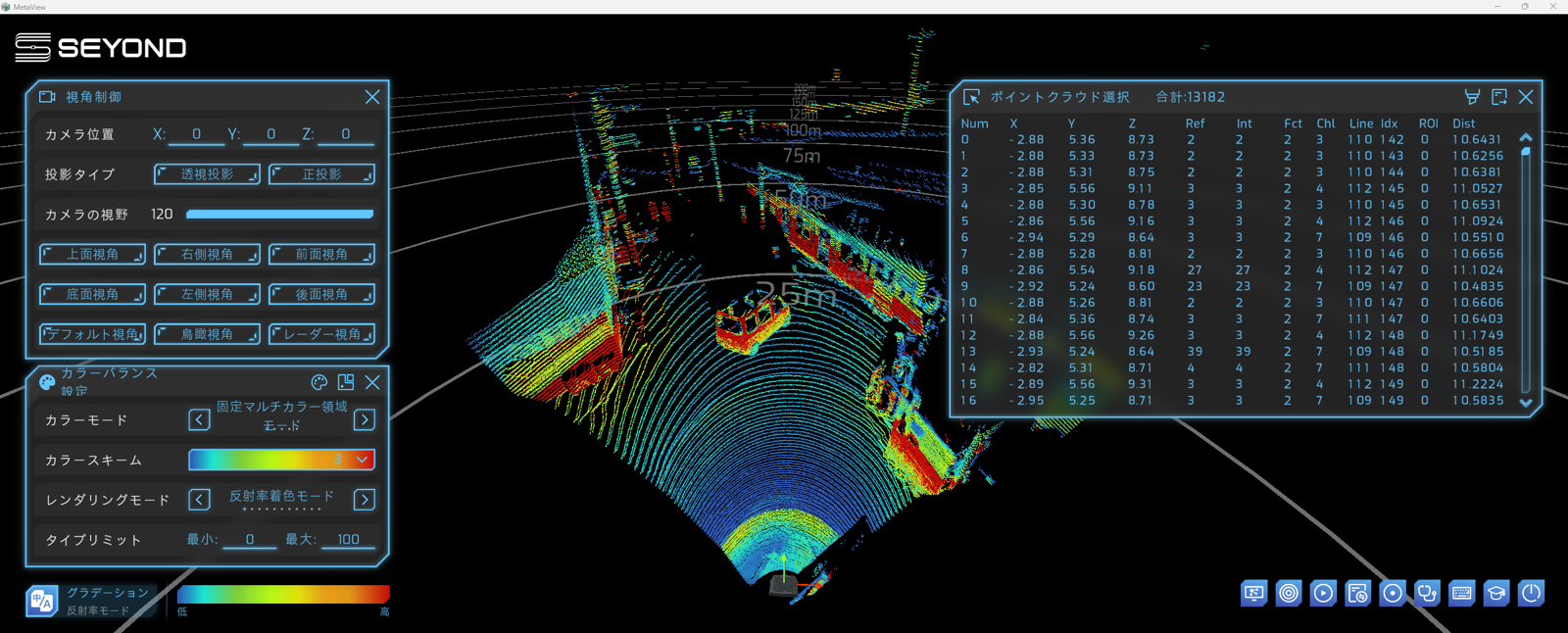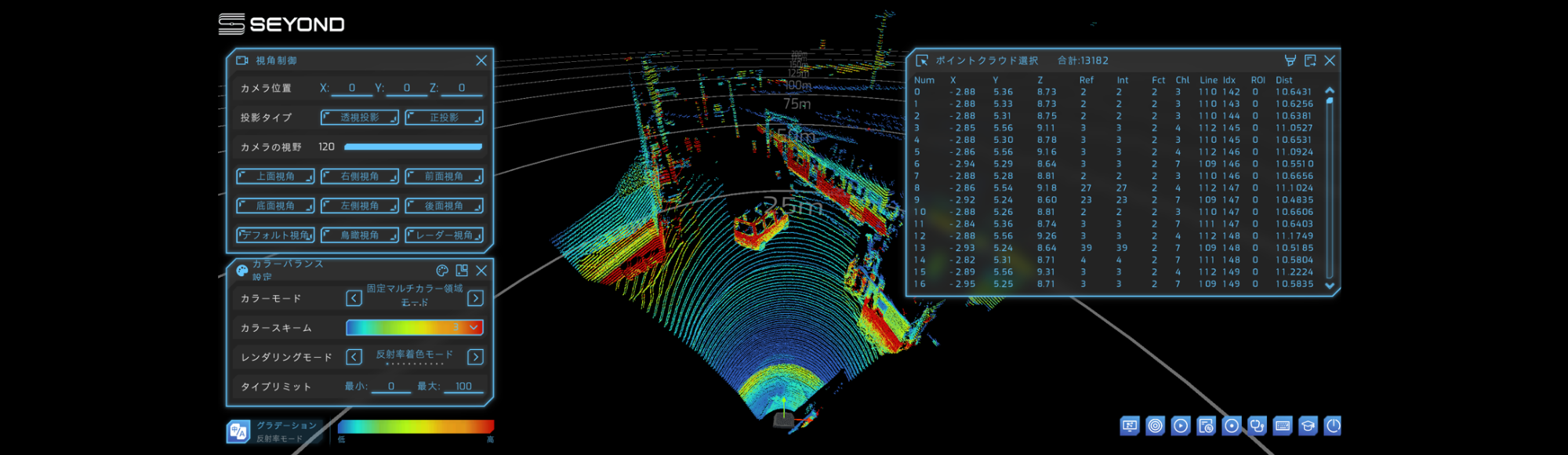
Metaview is a point cloud viewer provided by Seyond specifically for their in-house manufactured LiDAR. No installation is required, and anyone can download it from the website after a simple registration. Operation is intuitive with a GUI, and it supports not only the visualization of 3D point cloud data, but also various analysis and recording functions. Furthermore, it supports point cloud input from up to four multi-LiDAR devices, and also has functions such as coordinate alignment. Here we will introduce the installation and basic operations.
*This column is based on MetaView Ver. 1.5.5, the latest version as of January 2026.
1. Download Metaview Ver1.5.5
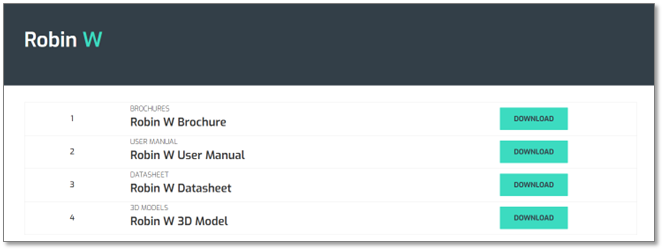
You can download the software and manual from the Seyond website.
You can download it just by registering.
File name: MetaView_Windows_v1.5.5.zip
*The operating environment is PC only. Please note that it does not work on ARM systems.
Supported OS: Windows, Linux, macOS
1. Download procedure
1. First, select General
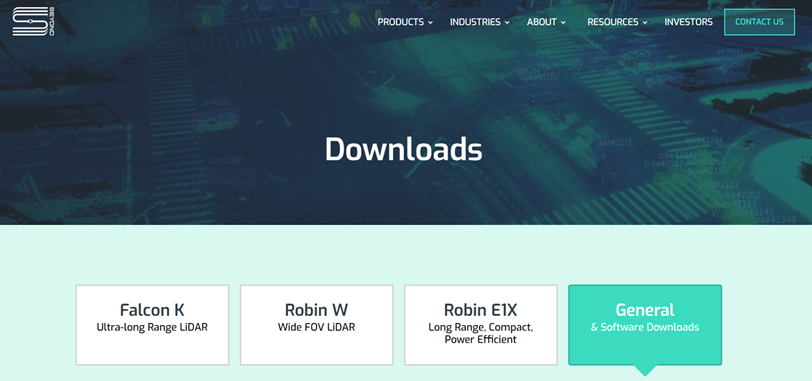
Seyond download page screen
2. Select Metaview 1.5.5 for each OS
*Please also download and refer to the MetaView Application Note and MetaView 1.5.1 Docs.
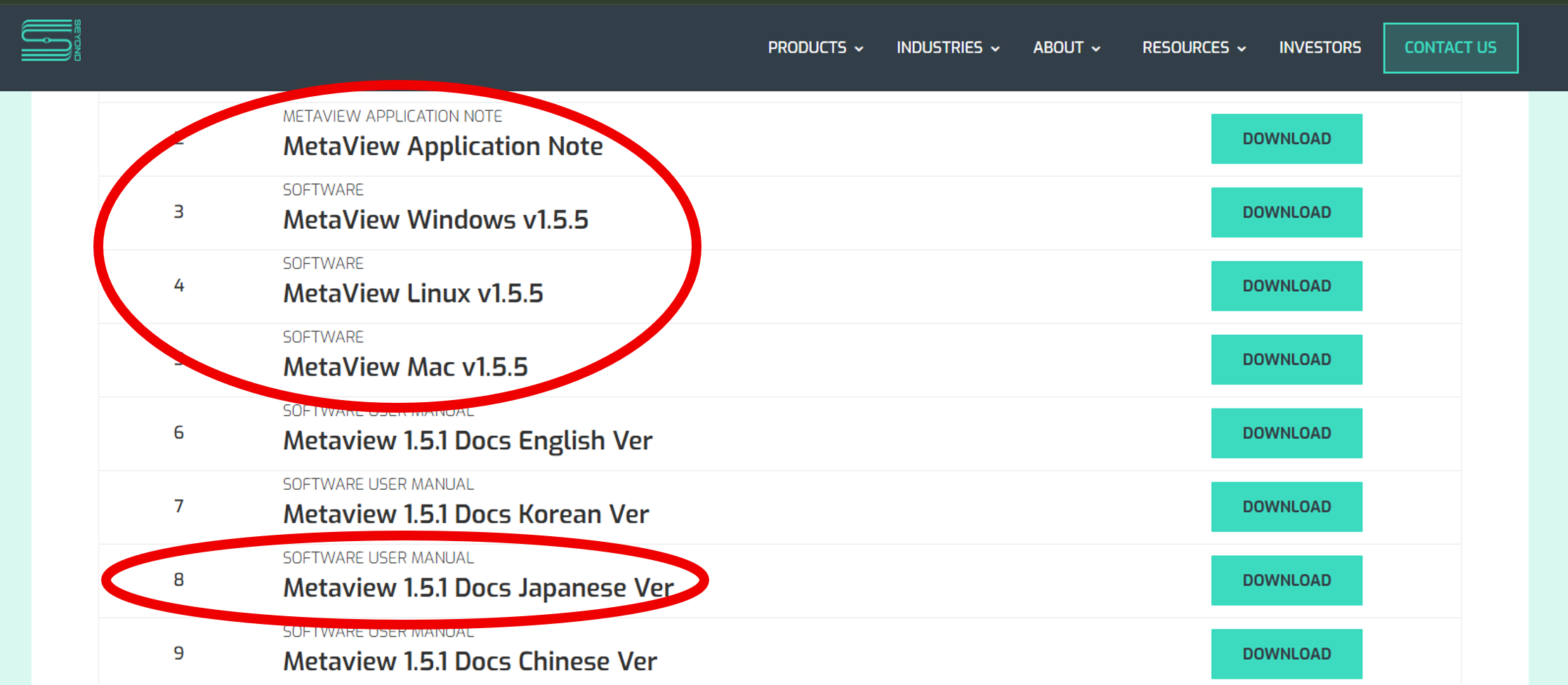
Seyond download page selection screen
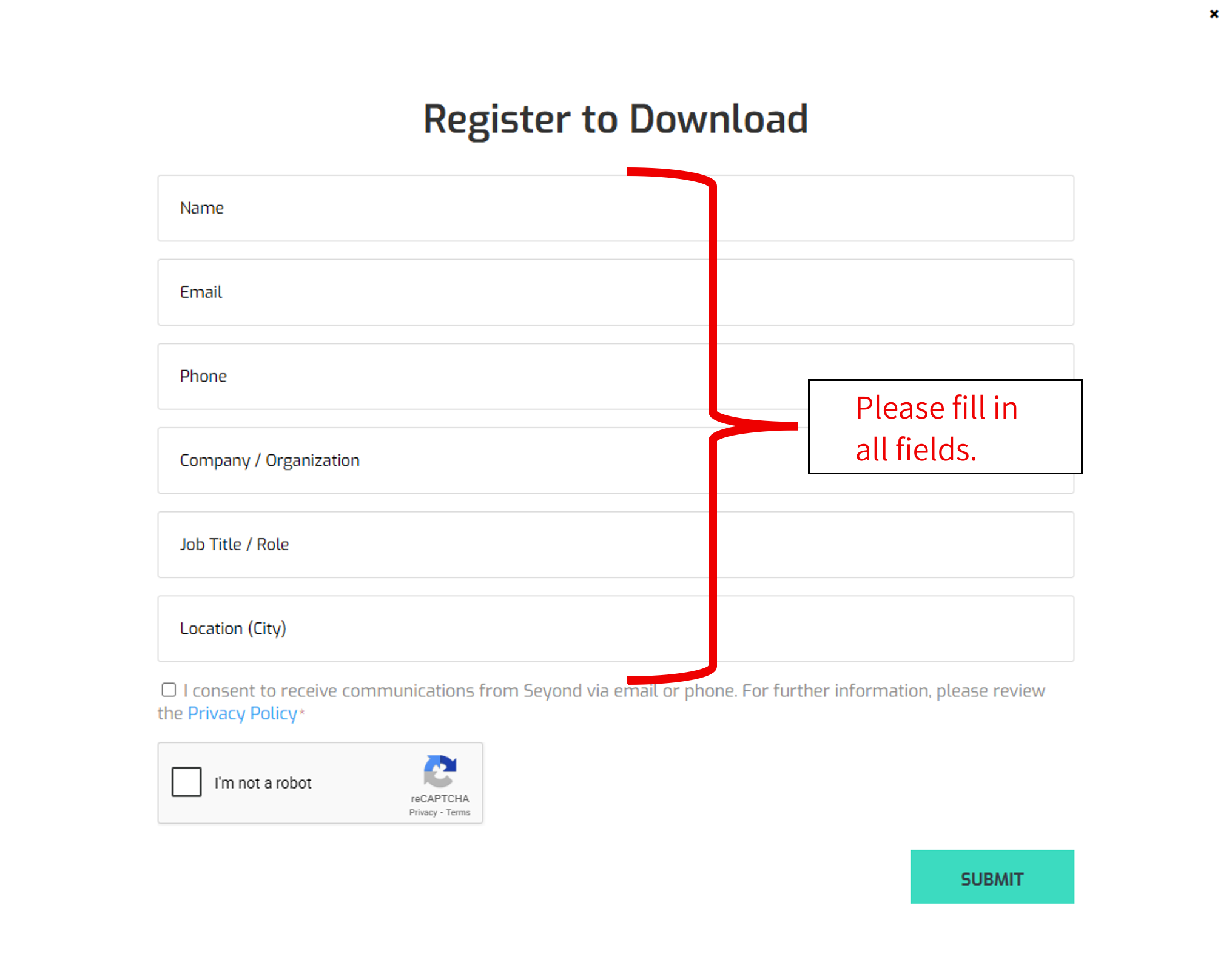
*On the "Register" screen, please fill out the form according to the instructions.
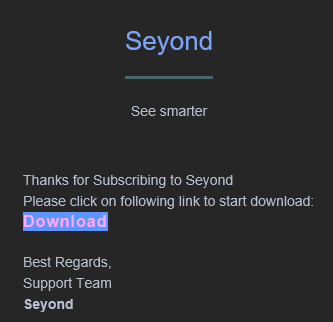
3. You will receive an email from Seyond. Click the Download button in the email.
4. Unzip the downloaded file to a location of your choice.
Once unzipped, the following files will be extracted. All you need to do is run MetaView.exe.
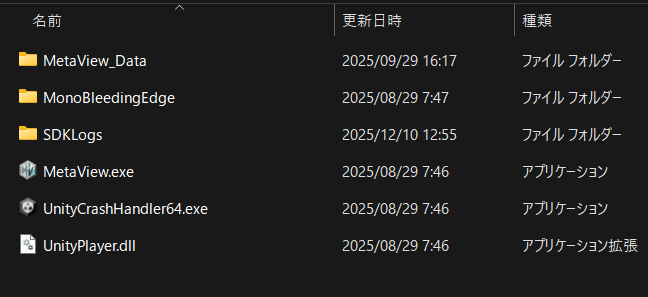
Example of MetaView_Windows_v1.5.5.1 directory
2. Launch Metaview
1. LiDAR connection
Before starting MetaView Ver. 1.5.5, start LiDAR first.
Connect the LiDAR to the LAN port and POWER SUPPLIES on.
The default setting when purchasing a Seyond LiDAR is IP address 172.168.1.10: port 8010.
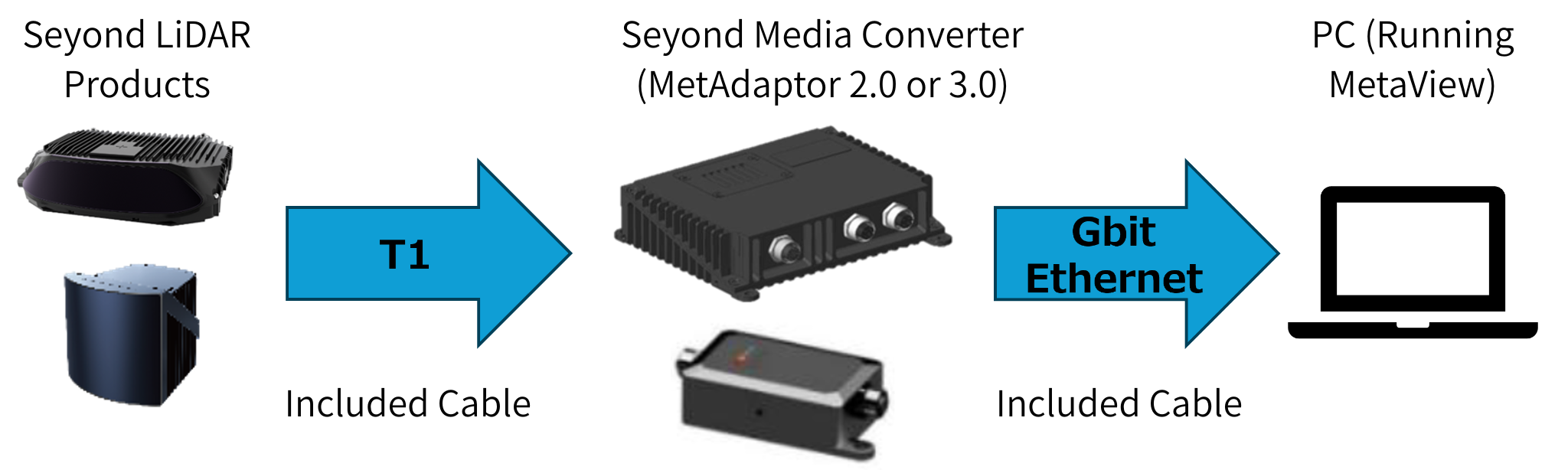
LiDAR connection diagram
Please refer to your LiDAR's user manual for instructions on how to change the IP address settings.
2. Launch Metaview
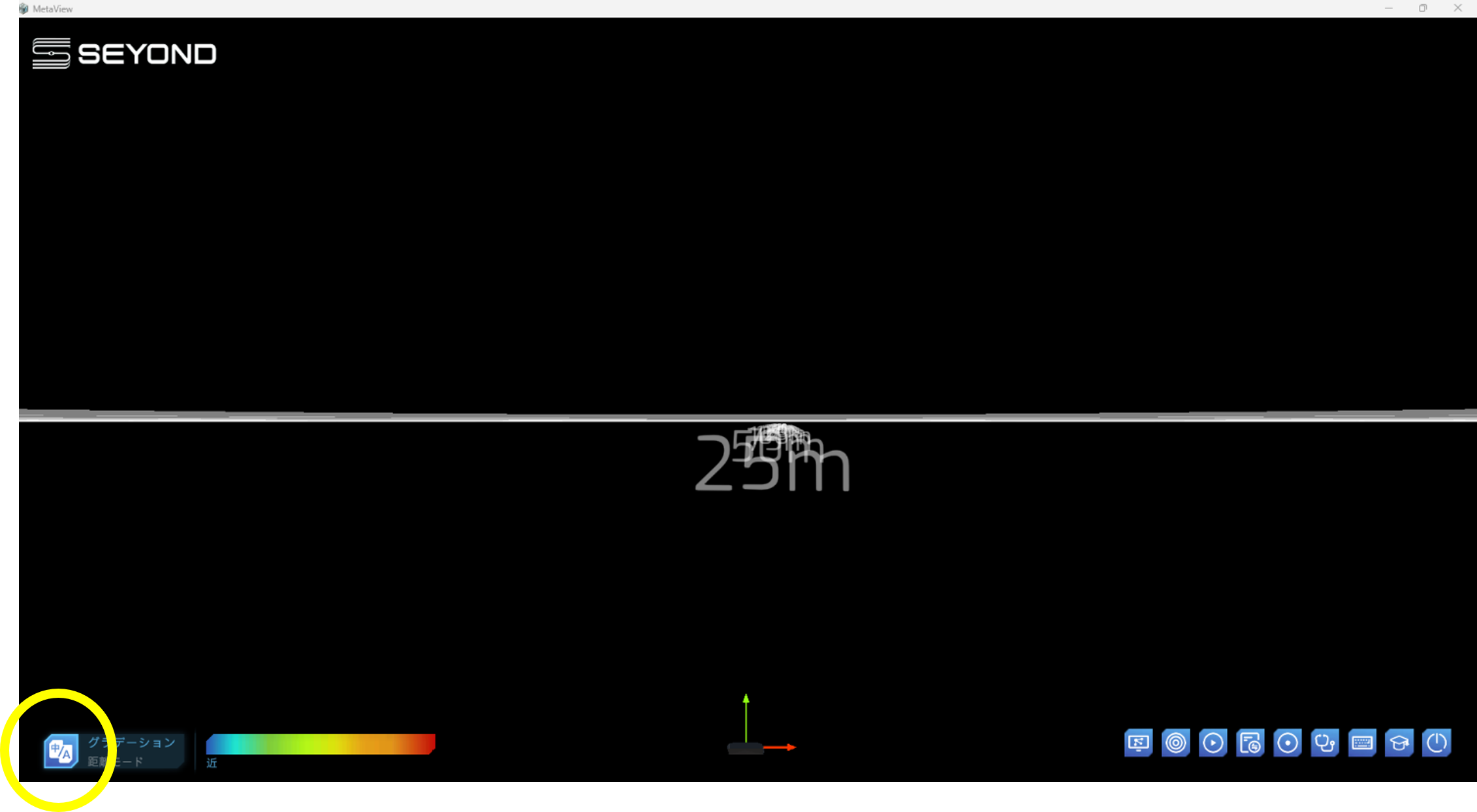
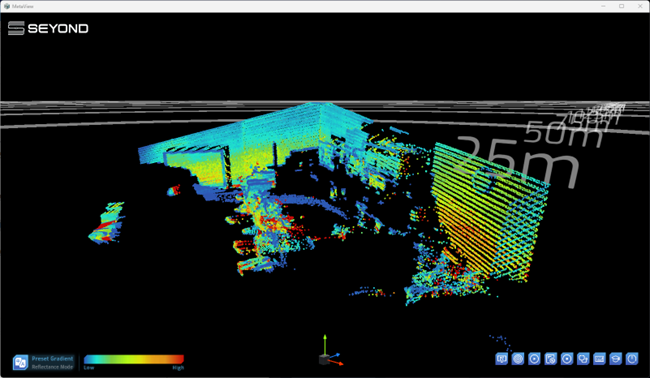
1. Click MetaView.exe to launch it.
If the LiDAR is connected correctly, point cloud data will be output at this point.
2. Click the "Language button" at the bottom left of the startup screen below and select Japanese.
■TIPS
*If the point cloud is not displayed, please check the connection status with the LiDAR using Ping etc.
3. Point cloud screen operations
Point clouds can be zoomed in/out and the viewpoint and angle can be freely controlled using the mouse or KEY BOARD.
Mouse and key operation (viewpoint movement)
1. Move your viewpoint up

Hold down the left mouse button and drag downwards, or press the ↓ (arrow) key (Shift+↓ (arrow) key is fast mode)
2. Move the viewpoint downwards

Hold down the left mouse button and drag downwards, or use the ↑ (arrow) key (Shift+↑ (arrow) key for fast mode)
3. Move the viewpoint to the left

Hold down the left mouse button and move left, or press the d key (Shift+d is fast mode)
4. Move the viewpoint to the right

Hold down the left mouse button and move right, or press the a key (Shift+a is fast mode)
5. Zoom in/out the viewpoint
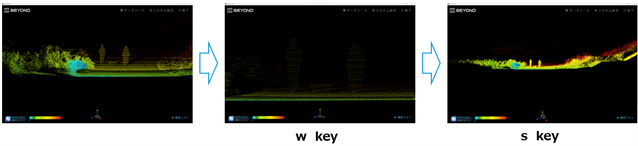
Zoom in/out with the mouse center wheel or w/s keys (Shift+w/s for fast mode)
6. Move display position (up/down/left/right possible)

Move the mouse while pressing the center wheel to move the display position (up, down, left, right)
7. How to return to the default screen
Left-clicking on the direction display below will bring up the viewing angle control menu, so left-click on "Default viewing angle" at the bottom left. (OTHERS, such as upward viewing angle and right viewing angle, can also be changed instantly.)
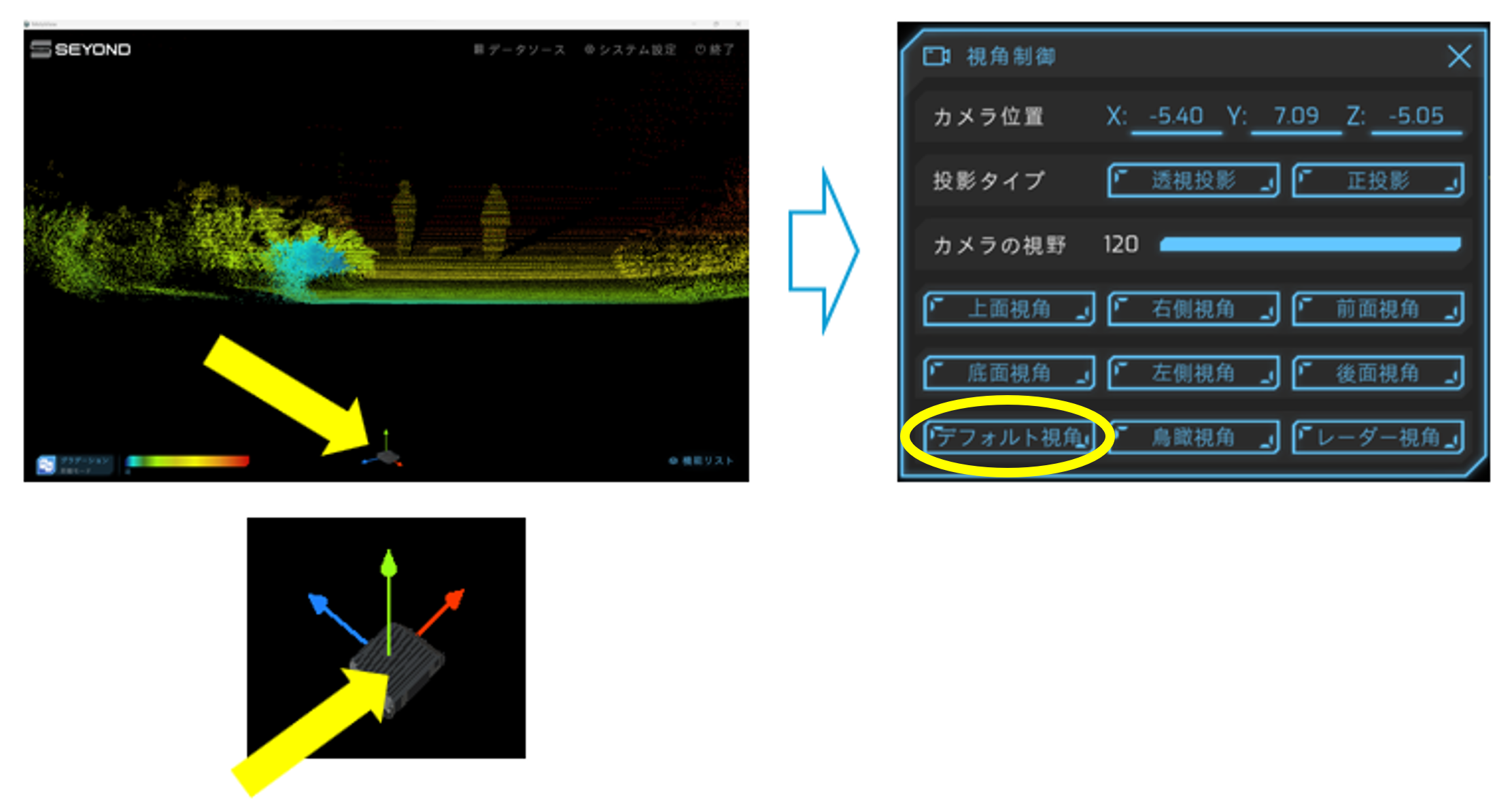
Left click in the middle to bring up the menu on the right
4. Changing the point cloud display color
1. Setting the rendering mode
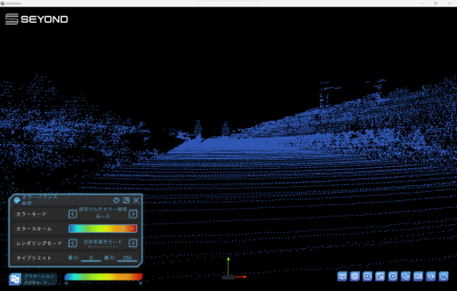
Left-clicking the color bar at the bottom left of the screen will bring up the color balance setting menu.
There are 11 supported rendering modes.
*For details, please refer to the MetaView Application Note.

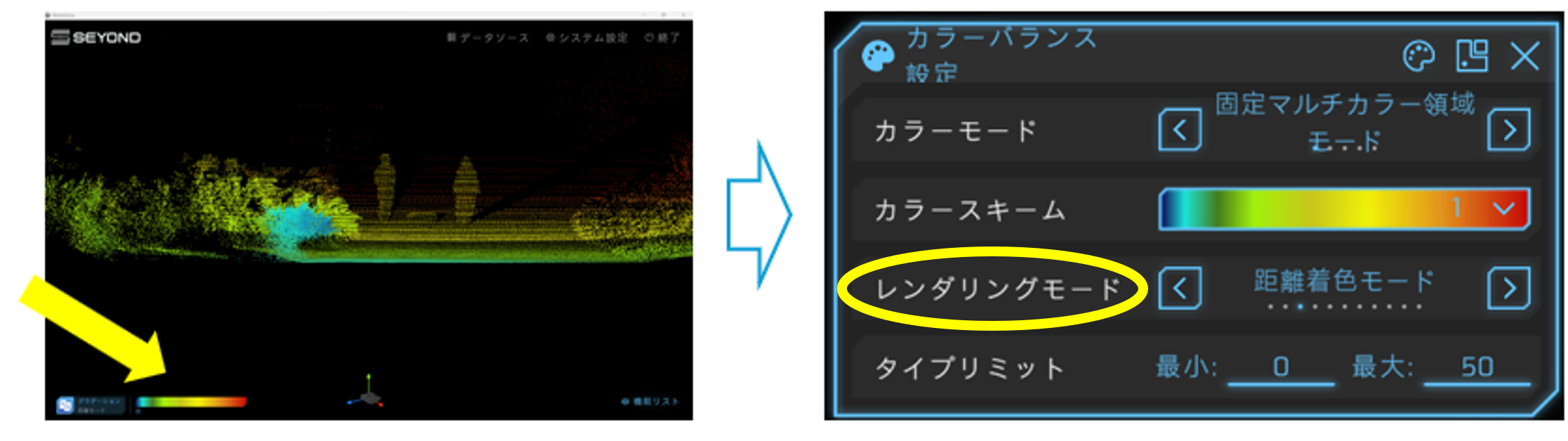
Color balance settings menu
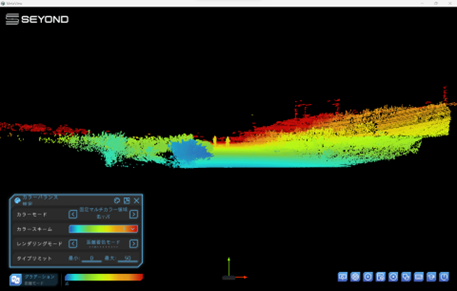
1. Distance coloring mode example
The color can be changed depending on the set distance.
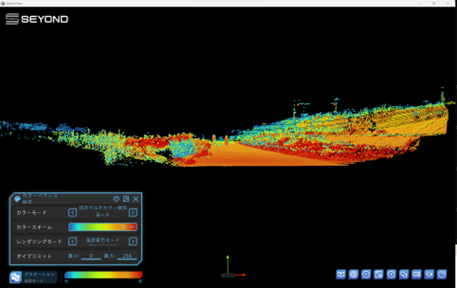
2. Intensity coloring mode example
The color can change depending on the signal strength.
3. Reflectance coloring mode example
The color can be changed depending on the reflectivity.
2. Color mode setting
The color scheme can also be changed
You can select a color by clicking the color bar in the menu with your mouse.
*Over 100 types available
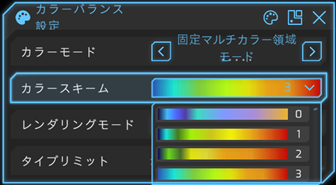
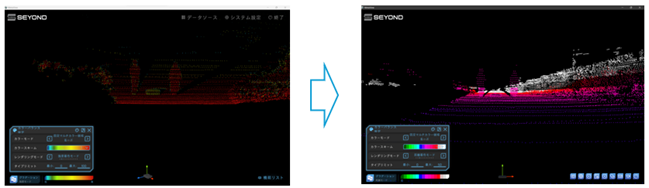
Color scheme change
5. Summary
MetaView Ver. 1.5.5 introduced here is compatible with all of Seyond's LiDAR products.
Seyond's LiDAR products meet the needs of the automotive and industrial equipment sectors.
If you are interested, please Inquiry Nexty Electronics.