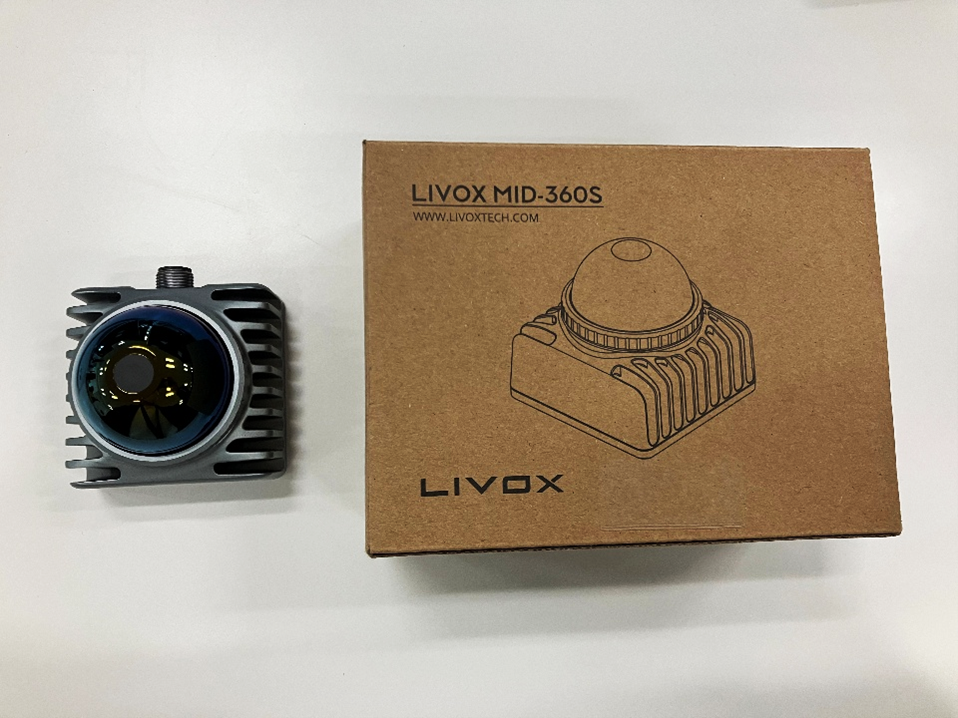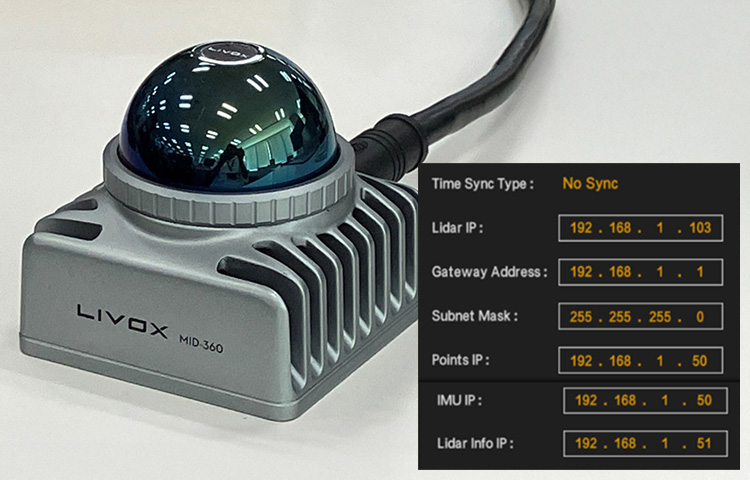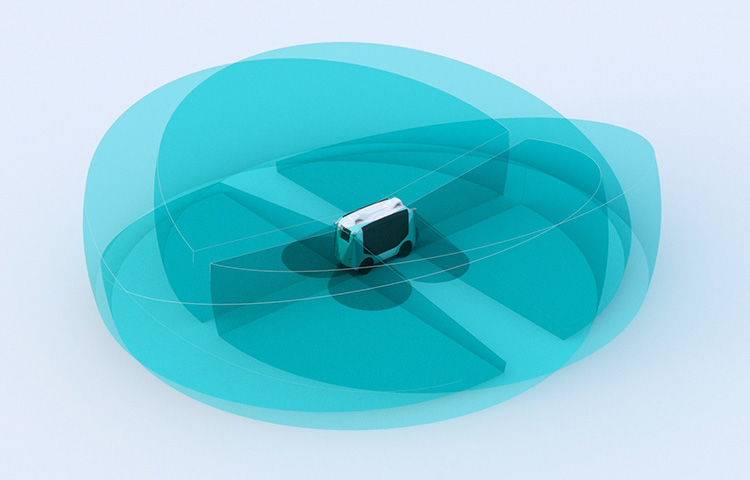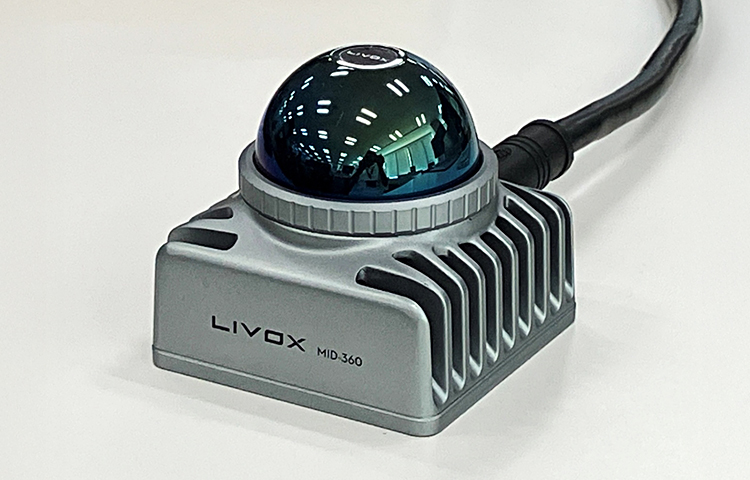
Livox Viewer 2 is software for analyzing LiDAR * data provided by Livox.
This software uses a GUI to allow 3D display and FILTERS of LiDAR point cloud data with just a few clicks.
This article provides a clear explanation of Livox Viewer 2, from basic functions to advanced settings, with plenty of images.
Even beginners can quickly get the hang of it.
* Light Detection and Ranging: A device that can optically detect and measure the distance to an object.
Overview of Livox Viewer 2
This software is compatible with various Livox LiDAR devices (MID-360) and allows you to display and analyze acquired point cloud data in 3D in real time.
This makes it easy to view a 3D model of the surrounding environment and evaluate sensor performance.
It is also possible to correct, save, and convert point cloud data, making it a very useful tool when using Livox LiDAR.
Livox Viewer 2 can be downloaded from the official website below.
Please use this article as a reference and try visualizing point cloud data!
At the top of the screen, there is a menu bar for operating various functions.
The menu bar is divided into three categories: basic operations, display settings, and advanced settings. We will explain the role of each in order.
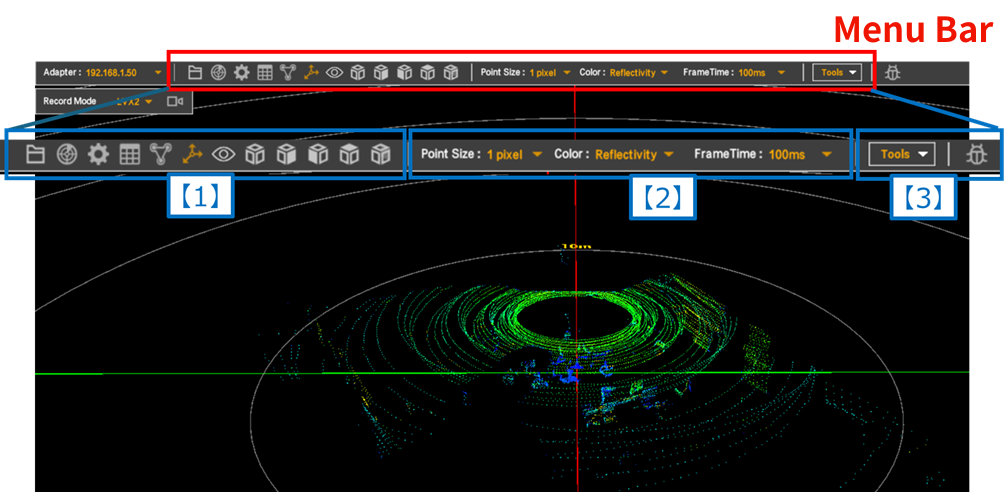
Main screen and menu bar
Main functions and operation menu of Livox Viewer 2
Menu bar [1]: Basic operations

Menu bar [1]
① Open File: Load a saved point cloud data file and start 3D display.
② Device List: Displays a list of connected LiDAR devices
③ Settings: Change the settings of the LiDAR device and point cloud data
④ Spread Sheet: Displays detailed information about the selected point cloud data in a table format.
⑤ Extrinsic Param: Change the external parameters (position, angle) of the LiDAR device
⑥ Grid Map: Display the grid (coordinate system)
⑦ Focus PointCloud: Move the point cloud to the center of the screen
⑧ View: Instantly switch viewpoints
Menu bar [2]: Display settings

Menu bar [2]
① Point Size: Adjust the display size of the point cloud data points
② Color: Change the color of the point cloud data
③ Frame Time: Sets FRAMES integration time.
Menu bar [3]: Advanced settings
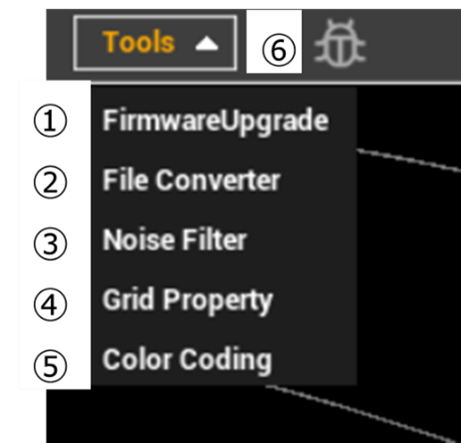
Menu bar [3]
① Firmware Upgrade: Update the device firmware
② File Converter: Convert data file formats (Lvx2 → Csv, Las, Pcd)
③ Noise Filter: Removes noise
④ Grid Property: Change the grid display settings
⑤ Color Coding: Change the color of point cloud data
⑥ Debug Setting: Send debug report
Details of each function and how to use it
From here, we will explain each function of Livox Viewer 2 in detail, along with actual screen images.
Menu bar [1]: Basic operations
① Open File
Loads saved point cloud data (supported formats: Lvx2, CSV) and starts 3D display.
② Device List
A list of connected LiDAR devices is displayed, and you can connect/disconnect them individually and switch the point cloud display.
This is useful in development environments that handle multiple devices.
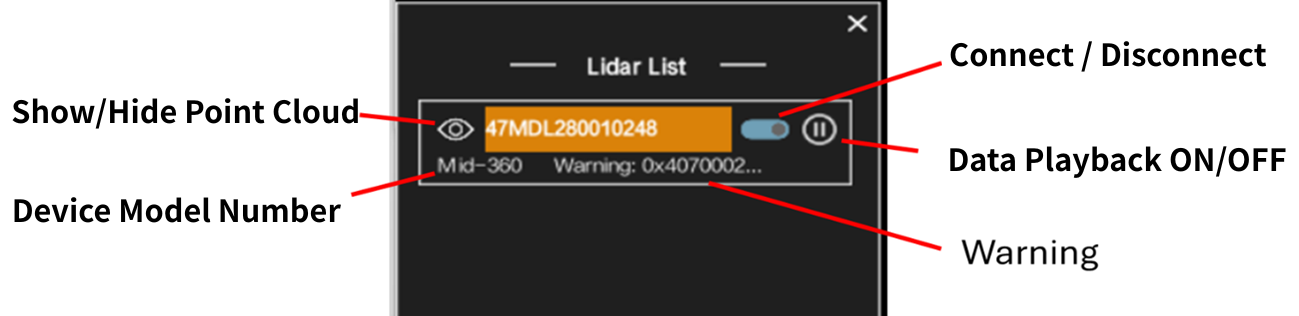
Device List
③ Settings
You can set detailed conditions for acquiring point cloud data, such as device operating mode, field of view (FOV), and IMU display.
The ★ in the image below indicates frequently used functions.
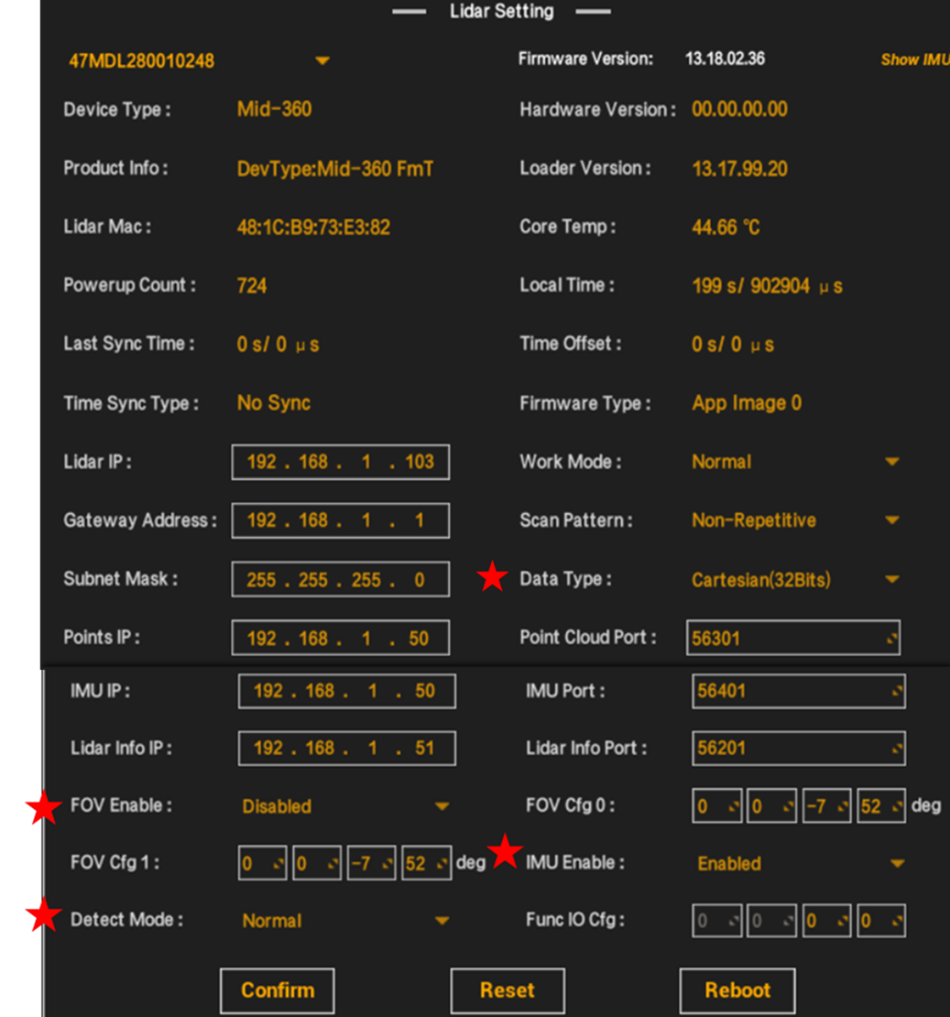
Settings
- Data Type
You can choose the coordinate system of the point cloud from Cartesian or Spherical.
You can adjust the data size and accuracy depending on your needs.
Cartesian (rectangular coordinate system, 16 or 32 bit): Represents the position of a point in space using three orthogonal axes: X, Y, and Z.
Spherical (spherical coordinate system): The position of a point is expressed by three values: radius, polar angle, and azimuth angle
- FOV (Field Of View)
Limiting the LiDAR detection range and filtering out unnecessary data improves analysis efficiency.
Two ranges can be reflected: FOV Cfg 0 and FOV Cfg 1.
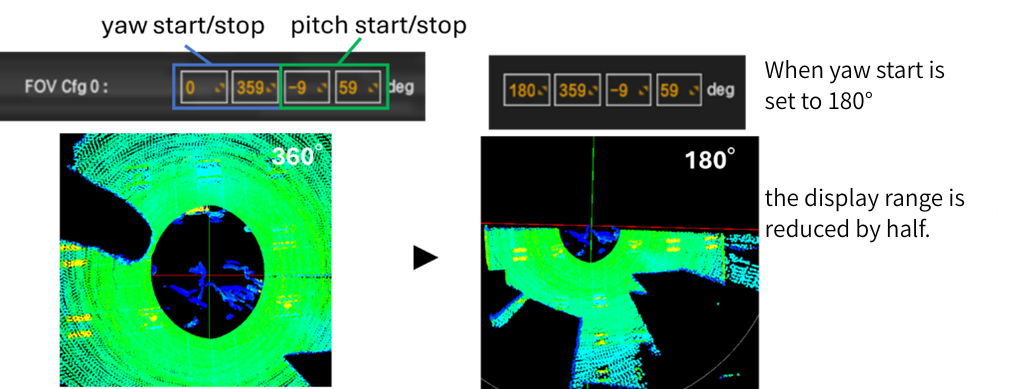
FOV setting
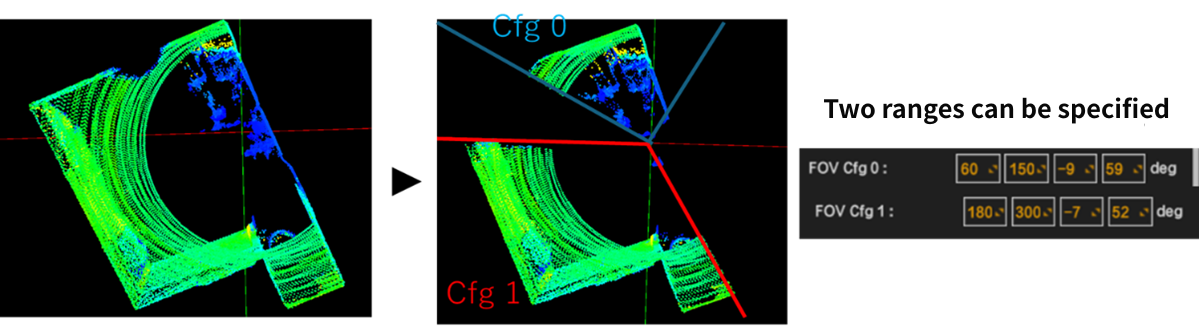
Two range selections
- IMU Enable
Displays the inertial measurement unit.
Acceleration and angular velocity data are displayed, allowing you to understand LiDAR movement and attitude changes in real time.
This is effective when mounted on a moving object.
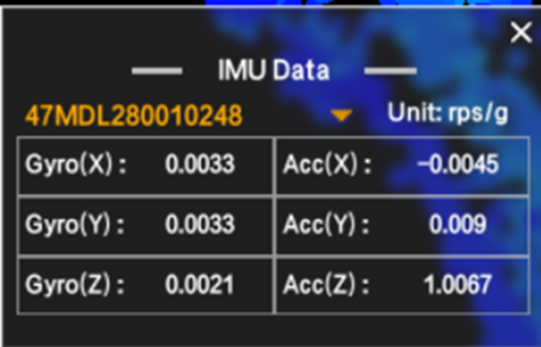
IMU Data (units: Gyro: rad/s, Acc: g)
- Detect Mode
You can select Sensitive mode, which increases the detection accuracy of low-reflectivity objects.
However, noise may increase.
④ Spread Sheet
You can select point cloud data within any range and check detailed information such as coordinates and reflectance in tabular format.
It is useful for analyzing specific areas.
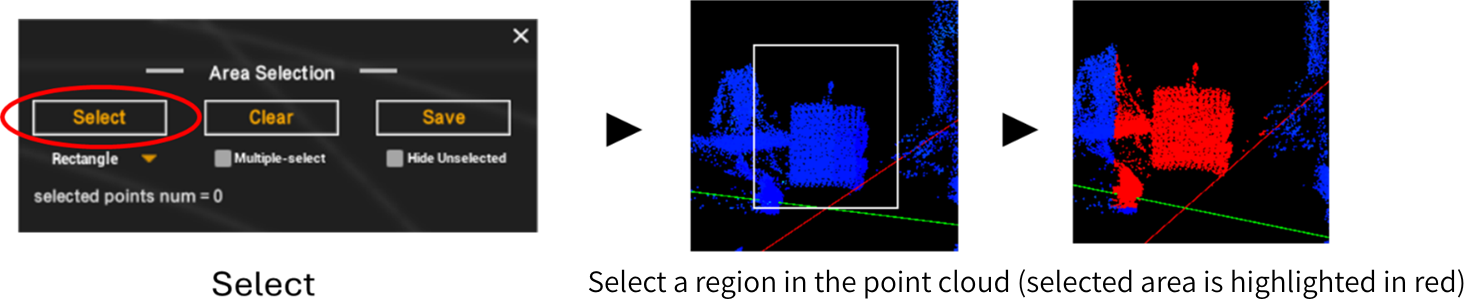
Range selection
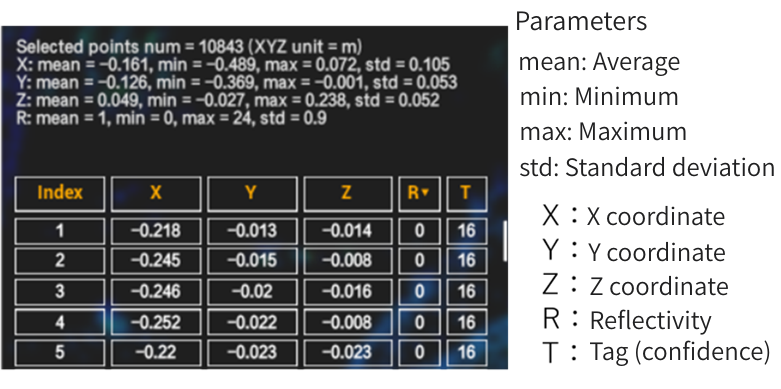
Each parameter
⑤ Extrinsic Parameters
You can change the external parameters (position, angle) of the LiDAR device.
If you change the installation position or angle of the LiDAR device, you can correct the origin and coordinate axes of the point cloud by adjusting the external parameters.
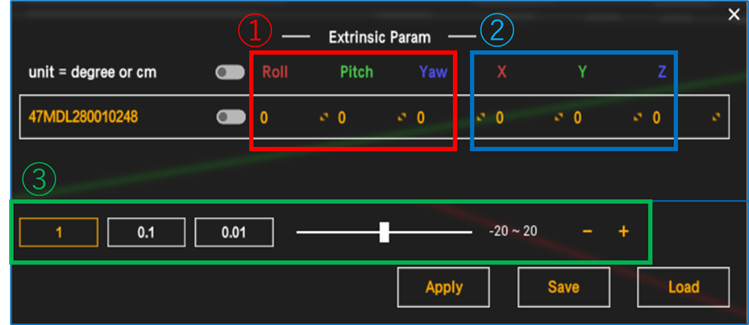
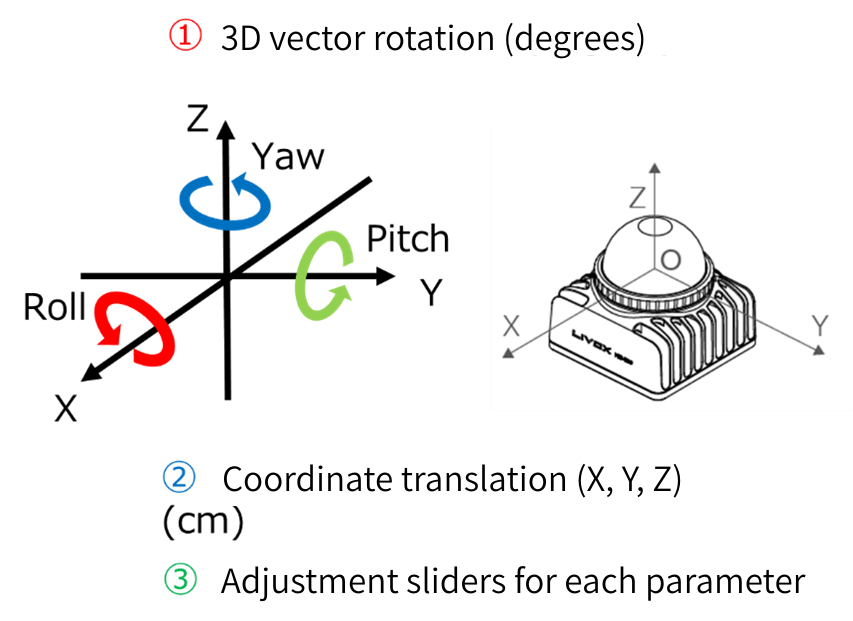
Extrinsic Param
⑦ Focus PointCloud
Instantly move the point cloud to the center of the screen.
⑧ View
By clicking on each icon, you can instantly change the angle at which you view the point cloud data, such as from the top, side, or at an angle.
Menu bar [2]: Display settings
① Point Size
The display size of the point cloud can be adjusted from 1 to 5 pixels.
It is effective for making dense data or distant point clouds easier to see.
② Color
You can change the display color of point cloud data.
- Reflectivity: Color coding by reflectivity
- Distance: Color by straight-line distance
- Solid Color: All displayed in white
- Elevation: Color-coded by elevation
- Lidar ID: Display each LiDAR device in a custom color
Reflectivity, Distance, and Elevation can be adjusted using gradients by setting maximum and minimum values.
③ Frame Time
Frame Time: The integration time for point cloud data can be adjusted in the range of 100 to 3000 ms.
A shorter setting will result in better real-time performance, while a longer setting will result in a denser point cloud.
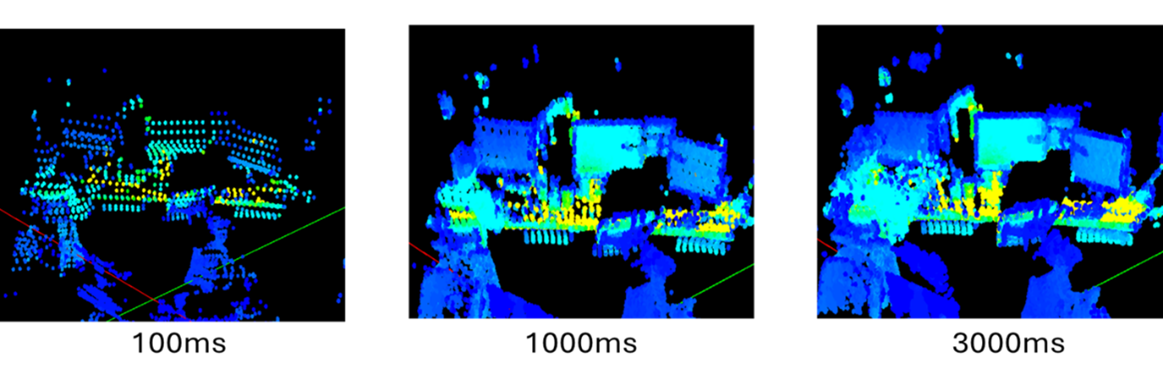
Frame Time
Menu bar [3]: Advanced settings
① Firmware Upgrade
Update the firmware to the latest version.
② File Converter
Point cloud data saved in Livox's proprietary format (Lvx2) can be converted into formats that can be used in other software (CSV, LAS, PCD).
CSV: A versatile text format that can be edited using Excel etc.
LAS: LiDAR industry standard binary format. Used in GIS software.
PCD: Point Cloud Library (PCL) compatible format. Ideal for research purposes.
③ Noise Filter
This function removes unnecessary noise from point cloud data. The following FILTERS can be selected depending on the environment.
- Atmospheric Cluster Noise: Removes noise such as dust, rain, fog, and snow (Strong: Tag 1 or 2, Weak: Tag 2)
- Dragging Noise: Eliminates distortion caused by signal fusion between nearby objects (Strong: Tag is 4 or 8, Weak: Tag is 8)
- Other: Removes false detections near the LiDAR (within 80 cm) (Strong: Tag is 16 or 32, Weak: Tag is 32)
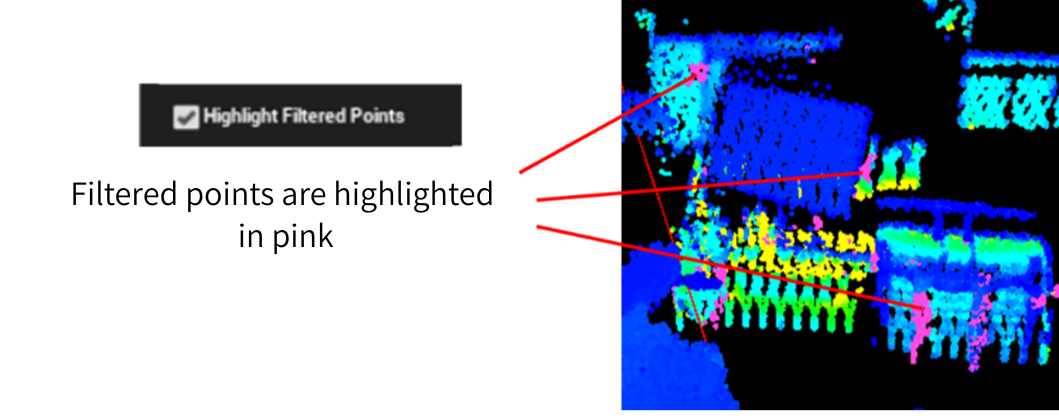
Noise Filter-Highlight Filtered Points
When "Highlight Filtered Points" is enabled, the points to be removed are displayed in pink, making them easier to see.
④ Grid Property
This is a display setting for the coordinate grid to make it easier to understand the spatial position of the point cloud.
You can adjust the shape, color, and range to ensure visibility that suits your analysis environment.
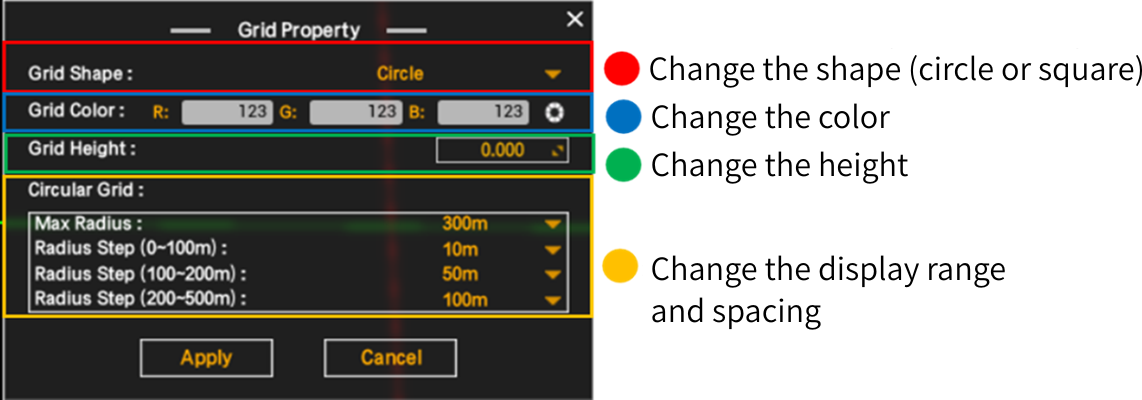
Grid Property
⑤ Color Coding
Point clouds acquired from multiple LiDAR devices are displayed in different colors for each device.
It helps to improve identification and organize data.
⑥Debug Settings
This function sends log information to the development team when a malfunction or bug occurs.
This can be used for troubleshooting and submitting improvement requests.
Summary
Livox Viewer 2 is a high-performance tool with visualization, analysis, and conversion functions to maximize the performance of Livox LiDAR.
With functions such as visualization, analysis, conversion, and noise removal, it can be used for a wide range of purposes, from research and development to proof-of-concept experiments and on-site verification. It is a useful tool in every phase, from the initial implementation to full-scale operation.
First, download Livox Viewer 2 and try displaying and manipulating point cloud data. You'll be able to experience its ease of use and rich functionality.
Let's continue to keep an eye on the new features and updates of Livox Viewer 2 and aim for more advanced data utilization.
Related Info
・Livox's main products
・Livox Viewer 2 Manual
![Making your own CABLES for the Livox MID-360 [Practical Guide]](/uploads/media_files/livox_10_thumbnail-3954867486.jpg)